VRC Avatar Scene Browser
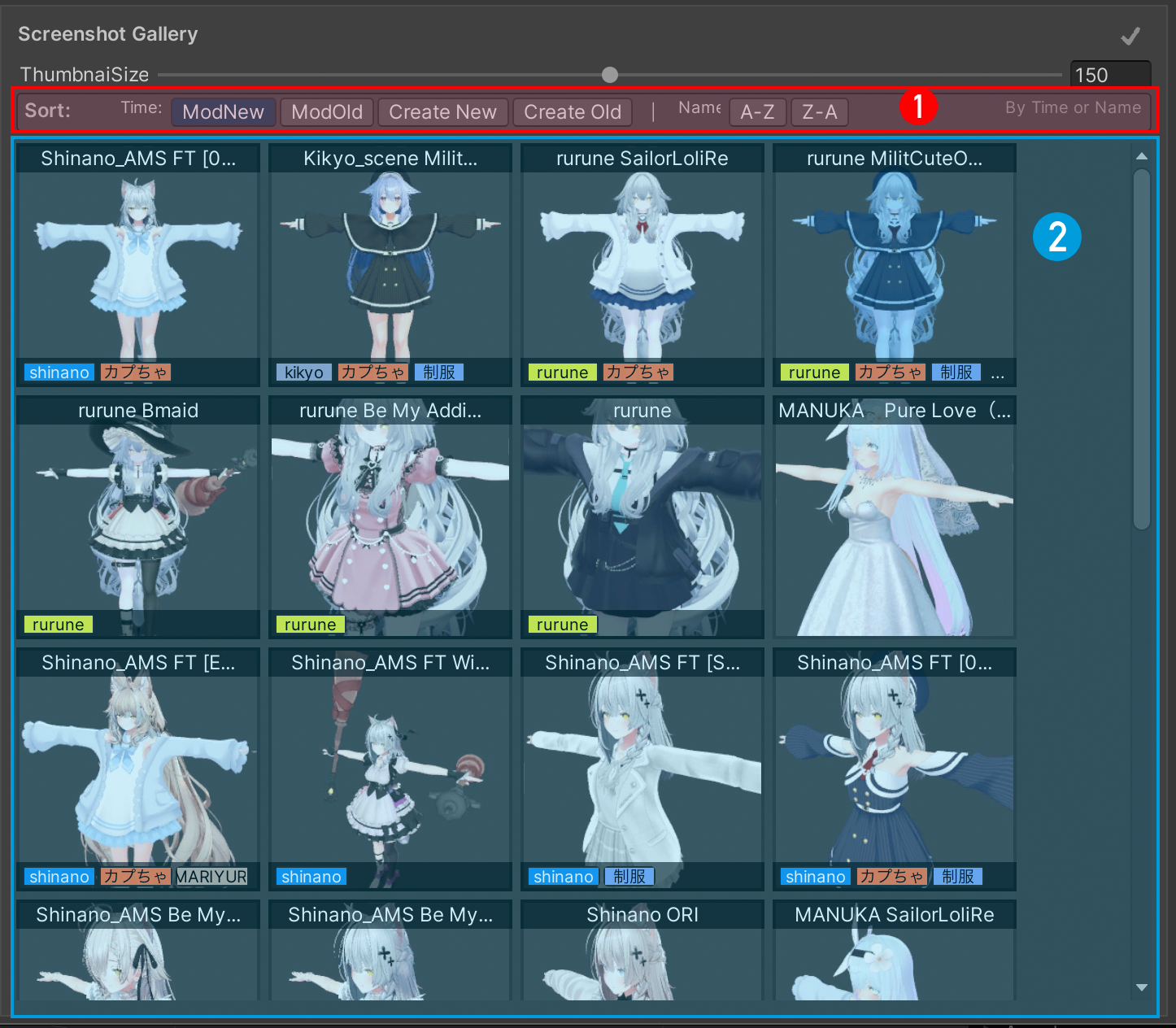
Organize Unity scenes with screenshots and tags, then open them with a double-click. For scenes with multiple avatars, save and restore different combinations of active avatars.
Documented plugin version: v0.23 · Changelog
-
Take your first screenshot and reopen a scene.
-
Explore the gallery, filters, and avatar configurations.
-
Find answers to common questions and current limitations.
Environment and languages
The plugin supports Chinese, Japanese, and English. Switch languages at the top of the main window.
- Unity 2022.3.22f1 LTS
- Avatar detection and configurations require VRChat SDK (VRCSDK3). Standard scene screenshots also work without the SDK.
Importing the UnityPackage
Download the latest .unitypackage file from the Booth page.
- In Unity, choose
Assets > Import Package > Custom Package.... - Select the downloaded
.unitypackagefile. - Make sure all files are selected, then click
Import.
You can also double-click the .unitypackage file to import it.
Avatars and outfits shown in the screenshots
Avatars
- オリジナル3Dモデル「しなの」
- オリジナル3Dモデル「桔梗」
- サメっ子オリジナル3Dモデル「rurune」-ルルネ-
- オリジナル3Dモデル「マヌカ」
- ライム -Lime-【オリジナル3Dモデル】
- オリジナルモデル「フィオナ(Fiona)」